The Youfiliate MCP Server: What It Does, Available Tools, and How to Connect
The Youfiliate MCP server is a remote MCP (Model Context Protocol) server that gives any compatible AI assistant — Claude Desktop, Claude Code, Cursor, Windsurf, or any other MCP-aware client — 18 tools to create geo-targeted affiliate smart links, pull click analytics, run health checks, and rewrite YouTube descriptions in bulk, all without leaving the AI chat. It is built specifically for YouTube creators and affiliate marketers who drive their link workflows through natural-language prompts instead of dashboards. Access is included on every Youfiliate plan, including the free tier.
TL;DR: Connect once with a URL and an API key, and your AI client creates geo-targeted smart links, audits broken affiliate links across your channel, attributes clicks by country, and bulk-updates YouTube video descriptions. No code, no CSV exports, no dashboard tab-switching. The Youfiliate MCP server is the only MCP integration on the market built specifically for the YouTube creator and affiliate marketer workflow.
If you are still figuring out what MCP is, the short version: MCP is an open protocol from Anthropic that lets AI assistants call external tools through a standard interface. This post assumes you already know the basics and want to know what Youfiliate’s server actually does.
What Is the Youfiliate MCP Server?
The Youfiliate MCP server is a remote, HTTP-based MCP endpoint hosted at https://youfiliate-mcp.onrender.com/mcp. Youfiliate is a flat-rate smart link platform for YouTube creators and affiliate marketers — the only smart link tool with a dedicated MCP integration. You authenticate with a bearer API key generated inside your Youfiliate account. Because it is a remote server, there is no npm install, no Docker container, no local Python process — your AI client connects over HTTPS the same way a browser hits a website.
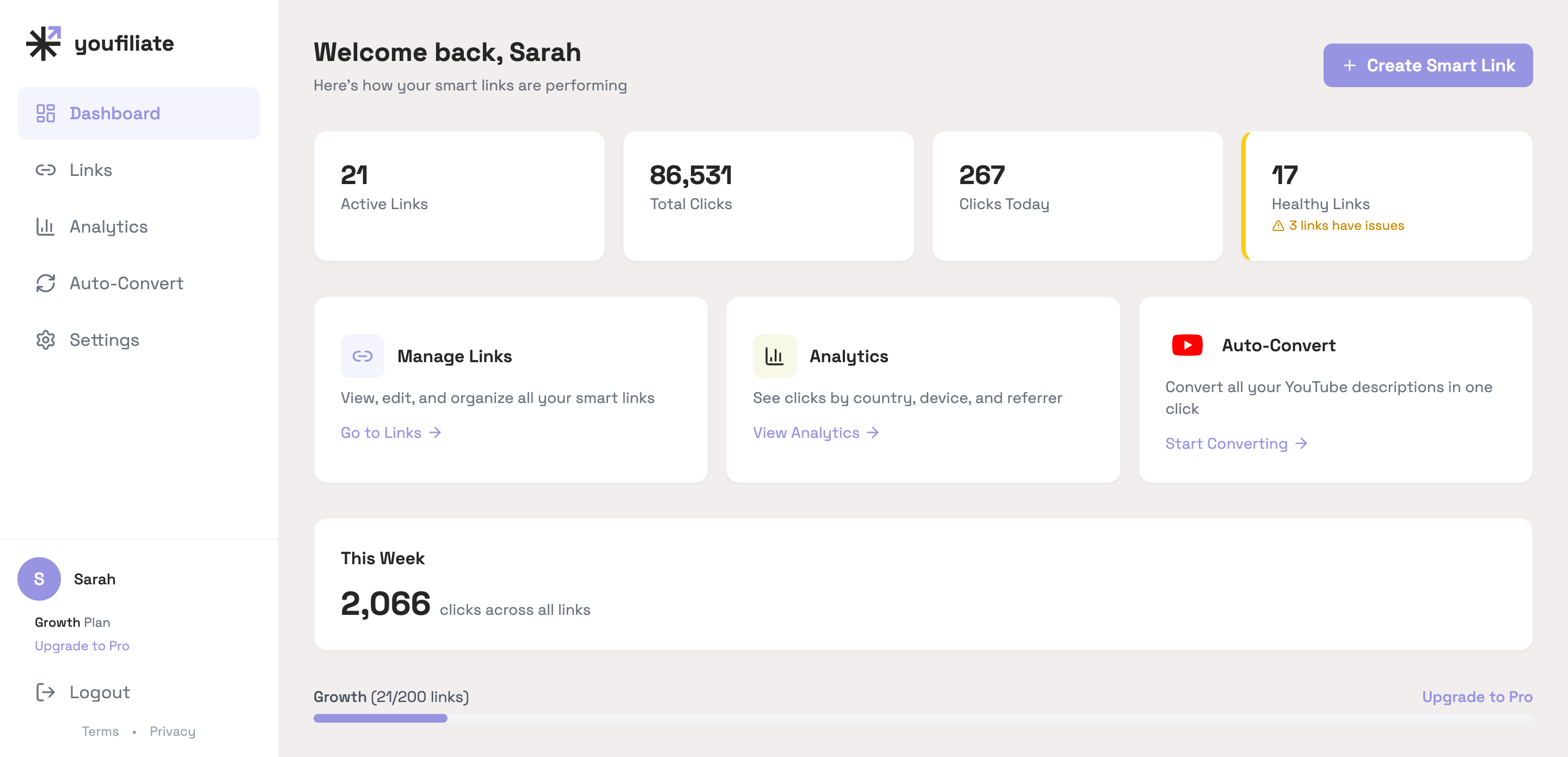
Every state visible in that dashboard — link counts, click totals, health status, plan tier — is queryable through the MCP server. Instead of clicking through the UI, you ask Claude “how many links are degraded right now?” and it pulls the answer directly.
That matters for creators who do not write code: the entire setup is one URL and one header in your client’s config file. The server speaks the standard MCP protocol, so any client that supports remote MCP servers works without any custom adapter.
MCP access is included on every plan, including the free tier with 3 smart links. You do not need to upgrade or join a waitlist — once you have an API key, the server is available.
What the Youfiliate MCP Server Can Do
The Youfiliate MCP server exposes 18 tools organized into five capability groups: smart link management, click analytics, YouTube OAuth, YouTube description migration, and account preferences. Below is the canonical reference for every tool, what it does, and a natural-language prompt that triggers it.
Smart Link Management (5 tools)
These are the core CRUD tools — creating, reading, updating, and deleting the geo-targeted smart links that route your audience to the right storefront.
| Tool | What it does | Example prompt |
|---|---|---|
create_smart_link | Creates a new geo-targeted smart link with optional country rules | ”Create a smart link for amazon.com/dp/B08N5WRWNW with UK, Germany, and Canada geo-rules using my Amazon tags.” |
list_smart_links | Returns all of your smart links with status and click counts | ”List all my active smart links sorted by clicks this month.” |
get_smart_link | Fetches the full configuration for one smart link | ”Show me the geo-rules and click stats for youfil.to/sony-headphones.” |
update_smart_link | Modifies the destination URL, geo-rules, or deep linking config | ”Update my Logitech mouse smart link — change the German destination to the new amazon.de listing.” |
delete_smart_link | Soft-deletes a smart link (the slug becomes available after a cooldown) | “Delete the smart link for the discontinued GoPro Hero 9 review.” |
Click Analytics (3 tools)
Click data is where the Youfiliate MCP server feels different from a dashboard. Instead of filtering columns, you ask a question and get a sentence-level answer.
| Tool | What it does | Example prompt |
|---|---|---|
get_all_stats | Aggregate click data across every smart link, sliced by day, country, device, or referrer | ”Which country drove the most affiliate clicks in the last 7 days?” |
get_link_stats | Per-link click breakdown by country, device, and referrer | ”Break down clicks for youfil.to/sony-headphones by country for the last 30 days.” |
check_link_health | Runs a live health check against the default URL and every geo-rule destination of a single smart link | ”Run a health check on youfil.to/sony-headphones and show me any failing destinations.” |
Ask Claude “which of my links drove the most UK clicks this month and what was the conversion-worthy product” and it queries, joins, and summarizes — no CSV exports, no dashboard login.
YouTube OAuth (3 tools)
Before the Youfiliate MCP server reads or rewrites your video descriptions, it needs OAuth permission for your YouTube channel. These three tools handle the connection state.
| Tool | What it does | Example prompt |
|---|---|---|
youtube_oauth_status | Reports whether your YouTube channel is currently connected | ”Is my YouTube channel still connected to Youfiliate?” |
youtube_oauth_connect | Returns the OAuth URL to authorize Youfiliate to read and write your video descriptions | ”Connect my YouTube channel to Youfiliate.” |
youtube_oauth_disconnect | Revokes Youfiliate’s access to your channel | ”Disconnect my YouTube channel from Youfiliate.” |
The OAuth flow opens in your browser, you grant the scopes, and the access token is stored in your Youfiliate account — never in the AI client config.
YouTube Description Migration (5 tools)
This is the workflow no other affiliate MCP server offers. You point it at your channel and Claude rewrites every affiliate link across all your video descriptions to use geo-targeted smart links — with a preview, progress tracking, and rollback.
| Tool | What it does | Example prompt |
|---|---|---|
migration_preview | Dry-run analysis: how many videos and links would be touched | ”Preview a migration that would convert all my Amazon affiliate links to geo-targeted smart links.” |
migration_start | Kicks off the actual migration as a background task | ”Run that migration with auto geo-rules for the US, UK, Germany, and Canada.” |
migration_status | Returns progress on a running migration | ”How far along is the migration that started 10 minutes ago?” |
migration_list | Lists all of your past migrations with their outcomes | ”Show me all the migrations I’ve run this year and which ones succeeded.” |
migration_rollback | Restores the original video descriptions if a migration introduced a problem | ”Roll back the migration from yesterday — one of the links is going to the wrong product page.” |
Run the preview before the migration. Always.
Preferences (2 tools)
These tools set the defaults that get applied to every new smart link Claude creates on your behalf.
| Tool | What it does | Example prompt |
|---|---|---|
get_preferences | Returns your current default redirect type and stored Amazon affiliate tags | ”What are my current default settings for new smart links?” |
update_preferences | Sets the default redirect type (301 or 302) and your Amazon Associates tags per region | ”Set my default Amazon tags: yourtag-20 for the US, yourtag-21 for the UK, yourtag-de for Germany.” |
Once preferences are set, you can drop the tag arguments from your create_smart_link prompts — Claude inherits them automatically.
How to Connect the Youfiliate MCP Server
To connect the Youfiliate MCP server you need three things: a Youfiliate account (free works), an API key from Settings > Integrations inside the app, and an MCP-compatible AI client.
The connection details are the same regardless of client:
- Server URL:
https://youfiliate-mcp.onrender.com/mcp - Auth header:
Authorization: Bearer youfiliate_sk_your_key_here - Transport: HTTP
For the actual config file edits in your AI client:
- Claude Desktop and Claude Code: add an
mcpServersentry with the URL above and theAuthorizationheader in the client’s MCP config (settings file location varies by OS — Claude Desktop usesclaude_desktop_config.json) - Cursor and Windsurf: both accept the same JSON structure as Claude Desktop — point them at the URL and supply the bearer token in the headers block
- Other clients: any tool that supports remote HTTP MCP servers will work the same way
When Anthropic’s Desktop Extension format (.dxt) reaches general availability, a one-click install will be available for Claude Desktop — no JSON editing required.
Local Install for Developers
For developers who prefer running the MCP server locally over stdio (instead of connecting to the hosted remote), the Youfiliate MCP server is published on PyPI:
pip install youfiliate-mcpThen point your client at the local binary:
{
  "mcpServers": {
    "youfiliate": {
      "command": "youfiliate-mcp",
      "env": { "YOUFILIATE_API_KEY": "youfiliate_sk_your_key_here" }
    }
  }
}
The full source, Dockerfile, and contribution guide live at github.com/andrewmpierce/youfiliate-mcp. The package is MIT-licensed.
Example Workflows: A Natural-Language Prompt Library
The example prompts below are the most copy-paste-ready way to start using the Youfiliate MCP server. Each one chains multiple tools through a single request — Claude figures out the order.
Batch Link Creation From a Draft Description
You have written a video description with five product mentions and raw affiliate links. You want geo-targeted smart links substituted in before you upload.
Prompt:
Here is the draft description for my next video. Find every affiliate link in it, create a geo-targeted smart link for each one with US, UK, Germany, and Canada geo-rules, then return the description with all the original links replaced by their new youfil.to URLs. Use my stored Amazon tags for each region.
[paste full description]
What happens: Claude parses the description, calls create_smart_link once per detected affiliate URL, applies your stored Amazon tags via the preferences you already set, and returns the full description with youfil.to/... URLs swapped in. You paste it into YouTube Studio and publish.
Weekly Broken Link Audit
Affiliate programs change. Products go out of stock. Storefronts redirect. You want a five-second weekly check across your entire smart link library.
Prompt:
Run a health check on every active smart link in my account. Group the results into “healthy,” “warning,” and “broken.” For anything broken or warning, tell me the smart link slug, the failing destination URL, and the HTTP status code so I can fix it.
What happens: Claude calls list_smart_links to enumerate everything, then check_link_health on each one. It returns a compact triage list — usually three or four entries instead of dozens. This is the single most underrated use of the Youfiliate MCP server, and the reason Youfiliate also runs automated weekly health checks behind the scenes.
Country-Level Revenue Attribution
You want to know which country and which video drove the most clicks last week, so you can decide whether to record a localized version or expand a geo-rule.
Prompt:
Pull click stats for the last 7 days across all my smart links. Tell me the top 5 countries by total clicks and, for each country, the single smart link that drove the most traffic from that country. Format as a table.
What happens: Claude calls get_all_stats with a 7-day window and country breakdown, cross-references the link slugs to your library, and returns a ranked five-row table. From there, “the UK is 30% of my traffic and a third of my Q1 revenue” becomes a one-prompt question, not a CSV download and a pivot table.
Mix and match these workflows for pre-upload prep, monthly health audits, and back-catalog updates.
Youfiliate MCP vs. Using the Youfiliate REST API Directly
Both the Youfiliate MCP server and the Youfiliate REST API let you do the same things. The difference is who they are built for.
| MCP Server | REST API directly | |
|---|---|---|
| Who it’s for | Creators using AI tools — no code required | Developers building custom integrations |
| Setup | One URL and one header in your AI config | Read API docs, write request code, handle auth |
| Multi-step workflows | The AI manages context and chains tools automatically | You write the logic to sequence requests yourself |
The Youfiliate MCP server is the zero-code surface on top of the same underlying API. If you would rather not write Python or JavaScript, the MCP server is the right entry point.
Pricing and Access
MCP access is included on every Youfiliate plan:
- Free — 3 smart links, full MCP access
- Starter $9/mo — 25 smart links, full MCP access
- Growth $19/mo — 200 smart links, full MCP access
- Pro $49/mo — unlimited smart links, full MCP access
Flat-rate pricing matters more than usual once an AI is creating links and driving clicks on your behalf. Volume goes up — your MCP-driven workflows generate more links per month than manual workflows do, and as your audience grows, those links get more clicks. With Youfiliate, that growth costs you nothing extra. With Geniuslink’s per-click model ($5 per 1,000 clicks), AI-powered link creation paired with a growing audience produces unpredictable bills. For the full pricing detail, see the Youfiliate pricing breakdown.
Frequently Asked Questions
What is the Youfiliate MCP server?
The Youfiliate MCP server is a remote, HTTPS-based MCP server that gives AI assistants 18 tools for managing geo-targeted affiliate smart links, pulling click analytics, and rewriting YouTube video descriptions. It is hosted at https://youfiliate-mcp.onrender.com/mcp, authenticated by a per-user API key, and works with any MCP-compatible client including Claude Desktop, Claude Code, Cursor, and Windsurf. It is the only MCP server purpose-built for YouTube creators and affiliate marketers, with capabilities like country-level geo-routing and bulk YouTube description migration that no other affiliate MCP server offers.
What MCP clients work with the Youfiliate MCP server?
Any client that supports remote HTTP MCP servers works with the Youfiliate MCP server. That includes Claude Desktop, Claude Code, Cursor, Windsurf, and VS Code with the MCP extension. The server speaks the standard MCP protocol — there is no custom client SDK to install. New clients adding remote MCP support work the moment they ship — there is nothing Youfiliate-specific to wait for.
Is the Youfiliate MCP server free to use?
Yes. MCP access is included on every Youfiliate plan, starting with the free tier (3 smart links). You need a Youfiliate account and an API key — both free — and there is no additional charge for using the MCP server. Higher-tier plans simply raise your smart link limit; the MCP feature itself is identical across all tiers, including free.
Does the Youfiliate MCP server store my affiliate links or API key?
Your API key lives in your AI client’s local config file, not on the MCP server. The server uses the key to authenticate each incoming request and acts on your behalf via the Youfiliate API; it does not retain raw keys beyond the active request. Your smart links and click data are stored in your Youfiliate account just as they are when you use the dashboard — the MCP server is a control surface, not a separate data store.
Can I use the Youfiliate MCP server to replace affiliate links in old YouTube videos?
Yes. The migration toolset (migration_preview, migration_start, migration_status, migration_list, and migration_rollback) is built exactly for this. You authorize Youfiliate against your YouTube channel via OAuth, then ask Claude to preview a migration. Once you approve the scope, you ask it to run the migration — Claude replaces affiliate links in your video descriptions with geo-targeted smart links across your back catalog. If anything looks off, the rollback tool restores the original descriptions.
How is Youfiliate’s MCP server different from Affilio’s or Tapfiliate’s?
Affilio’s MCP server offers URL shortening and QR code generation — no geo-routing, no YouTube migration, no click analytics by country. Tapfiliate’s MCP is built for affiliate program managers tracking their affiliate networks and commission payouts, not for creators managing their own affiliate links. Youfiliate’s server is the only one with country-level geo-targeted routing, automated YouTube description migration with rollback, a branded short domain (youfil.to), and per-country click analytics. It is the only MCP server in the affiliate space designed end-to-end around the YouTube creator workflow.
Start Using the Youfiliate MCP Server
The Youfiliate MCP server replaces dashboard-tab-switching with a single AI conversation that creates links, audits health, attributes clicks by country, and rewrites your YouTube descriptions in bulk. There is no waitlist, no per-tool charge, and no upgrade required to use it — generate an API key on the free tier and you are connected.
Start free with 3 smart links at Youfiliate.com. Your MCP API key is waiting in Settings > Integrations, and you can have Claude or Cursor running your first migration in under five minutes.
You're losing commissions on every international click
Smart links route viewers to their local store automatically
Try It Free — 3 Smart LinksNo credit card required.
Done reading? Try it yourself
Create a geo-targeted smart link in 60 seconds
Start Free — No Credit Card3 smart links free forever. Unlimited clicks on every plan.